You’ve just installed vSphere 6 vCenter Server Appliance (VCSA) and want to use the “Use Windows session authentication/credentials” checkbox like you know it from the vCenter Server running on a Windows Server?
You’ve already added an Active Directory as Identity source, and you can login with AD users, but the “Use Windows session authentication/credentials” still does not work?
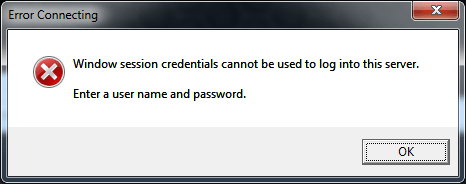
You see the following error messages in the vSphere Client:
Windows session credentials cannot be used to log into this server.
Or in the vSphere Web Client (If the checkbox is greyed out, install the Client Integration Plugin from the bottom of the login page):
Incorrect username/password

This post explains how to get the “Use Windows session” checkbox to work
To properly handle sessions, the vCenter Server Appliance has to be joined to the Active Directory, like you would do with Windows member servers. This applies to both deployment scenarios – vCenter with embedded PSC and vCenter with external PSC. All systems (or nodes) must be part of the the Active Directory.
- Open vSphere Web Client (https://%5Bvcenter%5D/vsphere-client)
- Login as Single Sign-On Administrator (Password set during installation)
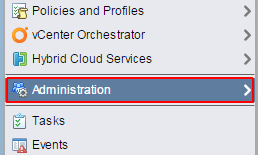
- Navigate to Administration > Deployment > System Configuration

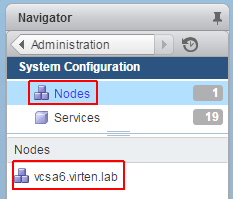
- Open Nodes and select your system
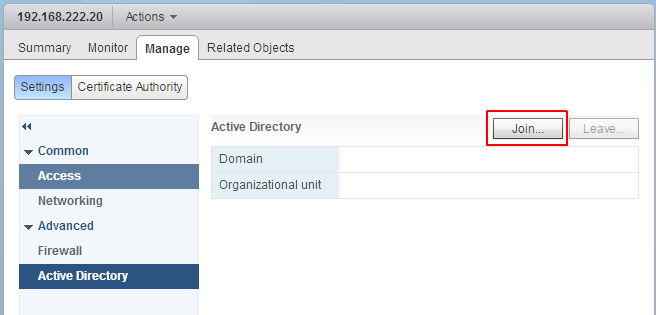
- Navigate to Manage > Advanced > Active Directory
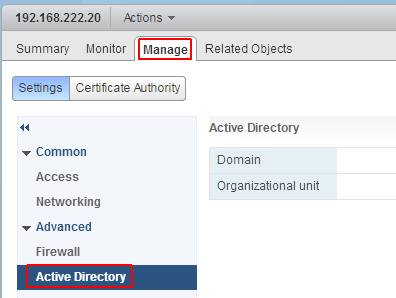
- Click Join…
- Enter AD domain information
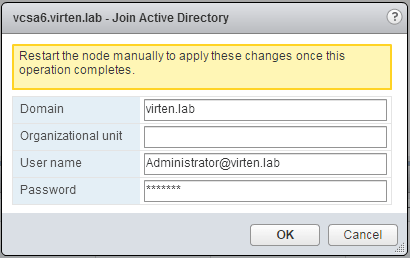
- Press OK
- Repeat Step 4-8 for all nodes
- Reboot the Appliance
If this does not work for any reason, you can also join the Active Directory from the command line:
- SSH to your VCSA (Hint: If SSH is disabled: vSphere Web Client > Administration > System Configuration > Nodes > Manage > Settings > Access > Enable SSH)
- Login as root
- Launch BASH
Command> shell.set --enabled True
Command> shell
- Join the Active Directory Domain (domainjoin-cli join [domain] [domain admin]
# /opt/likewise/bin/domainjoin-cli join virten.lab administrator
- Reboot the Appliance
Depending on your Active Directory configuration there might be an issue with the NSS configuration. If you still can’t “Use Windows session credentials”, try to enable Local Security Authority Subsystem Service (LSASS) in the NSS configuration:
- SSH to your VCSA
- Login as root
- Open the /etc/nsswitch.conf file using a text editor
- Locate the passwd: compat ato entry
- Replace it with passwd: compat ato lsass
- Reboot the Appliance
- If it does not work, wait 15 minutes and try again
Credit to: fgrehl
Site: https://www.virten.net/2015/05/how-to-get-use-windows-session-checkbox-to-work-in-vcsa6/


